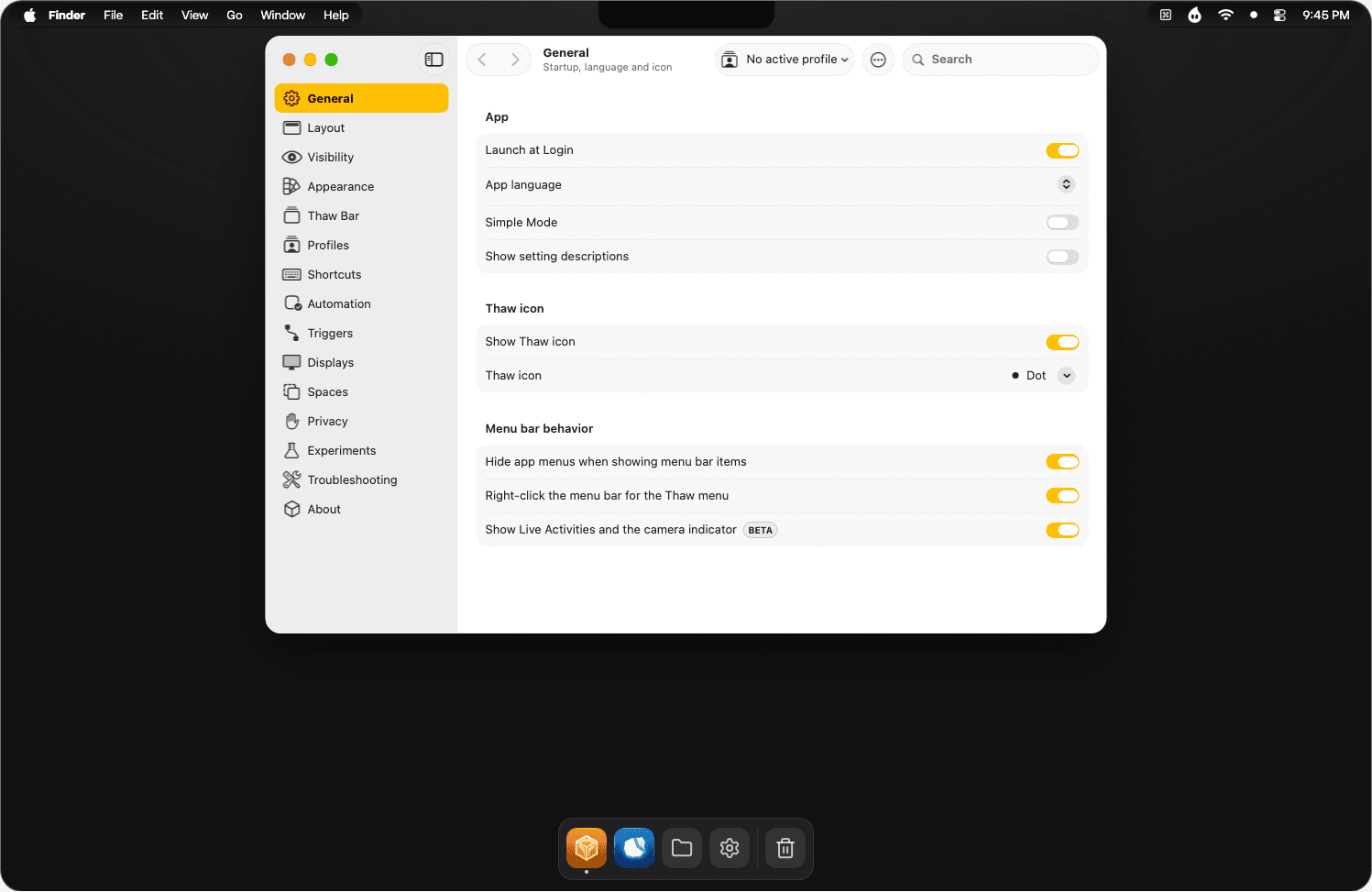
Install
Thaw 2, the stable release. Paste this into Terminal:
- Needs
- Accessibility
- Thaw asks on first launch. It needs it to move menu bar items.
- Optional
- Screen Recording
- Hiding works without it. The Thaw Bar, search and the Layout settings need it to show your items.
Features
Hide what you don’t need
Keep the items you look at in view and tuck the rest into a hidden section. Bring them back with a click, by hovering, by scrolling or with a shortcut.
Made for the notch
A notch covers part of the menu bar on a MacBook. The Thaw Bar shows the items it would hide in a bar of their own, just below.
Search from the keyboard
Find any menu bar item, hidden ones included, and open it. Recent items come first, and a shortcut opens an item by its letter.
Groups and folders
Group items so they move and hide as one, even across sections. Show a group as a folder with its own icon and colour.
Profiles
Save a whole setup and switch in one step, or bind it to a display, a Space or a Focus. Thaw shows what a profile would change before you apply it.
Zen mode
One shortcut hides every section and locks the ways to reveal them, then puts it all back. It can switch on by itself while you present or share your screen.
Style the bar
Give the bar a shape, glass, a border, a shadow or a tint taken from your wallpaper. You can round the screen corners too, and keep a different look per Space or for light and dark.
Scriptable
Drive Thaw with thaw:// links from a launcher, a shortcut or a script.
A privacy pane
See what Thaw reads from your screen and every network call it makes, and switch them off.
Layout editor
Arrange every item in one window, with the keyboard if you like. Rest on a tile and the item lights up in the real bar.
Also in Thaw
Revealing
- Reveal on click
- Reveal on hover
- Reveal on scroll
- Reveal on icon change
- Automatic rehiding
- Hide app menus on reveal
- Swap shown and hidden
- Open hidden items in the menu bar
Layout
- Manual arrangement
- Spacer items
- An always-hidden section
- Per-display spacing
- Layout backups
- Stand-ins for Apple’s items
- Choose any item’s icon
Appearance
- Adaptive gradient tint
- Gradient angle
- Rounded corners
- Menu bar shadow
- Per-Space appearance
- Show or hide the bar per Space
- Light and dark looks
Profiles
- Per-display profiles
- Per-Space profiles
- Focus Filter profiles
- Script hooks on profiles
- Profile hotkeys
Automation
- Triggers for running apps
- Spotlight actions
- Controls in Control Center
Everyday
- Simple Mode
- Live Activities stay visible
- Open by letter
- Settings search
- Tooltips
Works with
- RaycastBy its extension
- DroppyAs a Droplet
- FloeWith no setup
- ShortcutsWith its own actions
- SiriBy voice
- thaw:// linksFrom any app or script


Some of these features are only in Thaw 3. See which Thaw your Mac gets.
Verified
Privacy only works if the security around it does.
Thaw asks for permissions that reach across your Mac, so we look at the whole release process and not only at what the app does. Of the 12,771 projects on OpenSSF’s Best Practices list, 107 hold Gold and 78 meet every Baseline control at Level 3. Thaw, a free menu bar app, is one of them.
- SLSA buildLevel 3Every release has a signed record of how it was built.
- OpenSSF Best PracticesGoldHow the project is run. The highest of three badges.
- OpenSSF BaselineLevel 3Security controls every project should have. Met at the top level.
- OpenSSF Scorecard9.1 / 10An automated score of the repository, run weekly.
- Test coverage92.3%The share of Thaw’s code its tests run.
Read from OpenSSF and SonarQube Cloud on 10 October 2026. The SLSA level is the one Thaw’s release pipeline is built to.
What does this mean?11.9K GitHub stars372.1K downloads58 contributors75 releasesCommunity